.jpg)
Fix Print Unable 03 Error for Brother Printer Error Code 03
There's no need to be concerned if your printer displays the message "Print Unable 03" and won't print. We'll guide you through troubleshooting and resolving Brother Printer Error Code 03 for proper printer functionality. This error may result from various causes like a fuser assembly problem, outdated drivers, or printer part malfunctions. Initially, try restarting the printer to resolve the issue. If it persists, proceed with additional troubleshooting steps to rectify the problem.
What does Brother Printer Error Code 03 Means?
Brother Printer Error Code 03 typically signifies a "Machine Error" related to the mechanical components of the printer. It often indicates a malfunction in the fuser assembly, which is responsible for fixing the toner onto the paper. This error may occur due to issues with the fuser unit, such as overheating or other internal problems. To resolve Error Code 03, it's advisable to consult the printer's manual, check for paper jams or obstructions, and consider seeking professional assistance if needed.
Error Code 03 on a Brother Printer: Common Causes
The primary causes of Brother Printer Error Code 03, typically associated with mechanical issues in the fuser assembly, include:
Fuser Assembly Problems: Malfunctions within the fuser assembly, which is responsible for heating and fixing toner onto the paper, can trigger this error. This includes issues like overheating, worn-out components, or electrical faults.
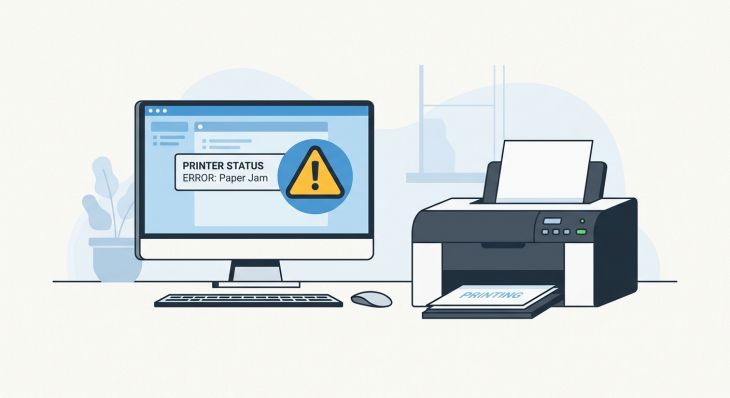
Paper Jams: Paper jams or obstructions in the printer's paper path can disrupt the fuser assembly's operation and lead to Error Code 03.
Printer Parts Malfunctions: Failures in other mechanical parts, such as sensors or gears, can indirectly affect the fuser assembly and result in this error.
Outdated Drivers or Firmware: In some cases, outdated printer drivers or firmware can contribute to Error Code 03.
Fix Brother Printer Error Code 03 through troubleshooting
To troubleshoot and resolve Brother Printer Error Code 03, which is often related to mechanical issues in the fuser assembly, follow these steps:
Power Off and On:
Sometimes, a simple reset can clear the error.
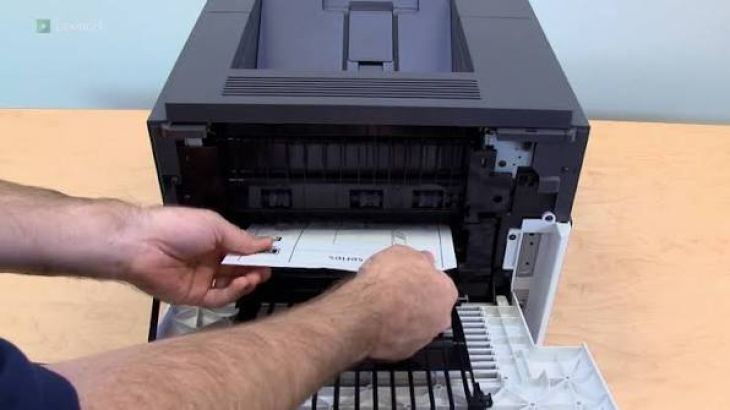
Check for Paper Jams:
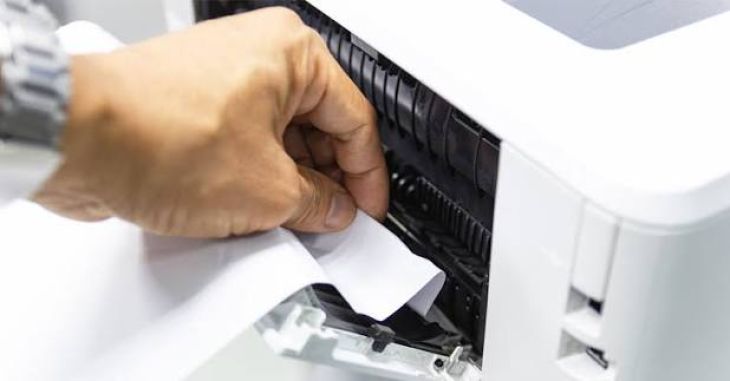
Carefully inspect the entire paper path for any paper jams or obstructions.
If found, gently remove the jammed paper following the manufacturer's instructions.
Inspect the Fuser Assembly:
Open the printer's covers to access the fuser assembly.
Examine it for visible issues like loose components, burnt areas, or signs of wear.
Cool Down Period:
If you suspect overheating, allow the printer to cool down for a while before restarting it.
Update Printer Firmware/Drivers:
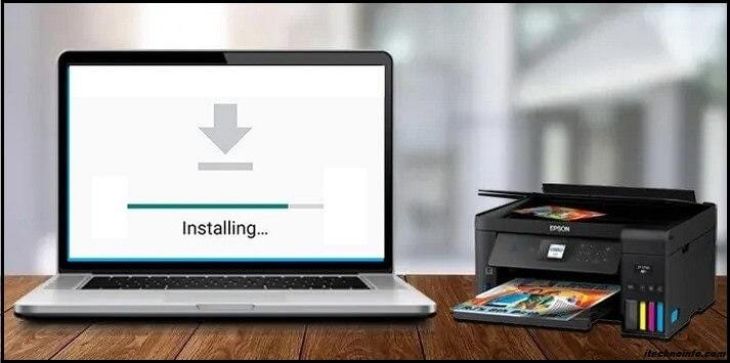
Visit the Brother website to check for the latest firmware and driver updates for your printer model.
If available, install the updates to address potential software-related issues.
Factory Reset (Optional):
As a last resort, think about performing a factory reset. Refer to the printer's manual for instructions on how to reset your specific model.
Professional Assistance:
If the error persists after attempting these steps, it's advisable to contact Brother's customer support or a certified technician for a thorough inspection and repair of the fuser assembly or any other mechanical issues.
By following these troubleshooting steps, you can often identify and resolve Brother Printer Error Code 03, ensuring the proper functioning of your printer.
FAQs
How to Reset the Printer?
You can attempt to resolve this error code through a few steps. Initially, consider resetting the printer. To do so, power off the printer and disconnect it from the power source. Wait approximately 30 seconds, then reconnect it to power and switch it on. This action might clear the error code, potentially restoring normal printer operation.
How do I clear a Brother Pinter Error?
To clear a Brother Printer error, follow these general steps:
Identify the Error: Determine the specific error code or message displayed on your printer.
Refer to the Manual: Consult your printer's user manual or visit the manufacturer's website for information on the error and its possible solutions.
Power Cycle: Unplug the printer from the power supply and turn it off. Wait for about 30 seconds to a minute.
Restart the Printer: Reconnect the printer to power and turn it back on.
Cancel Print Jobs: If necessary, cancel any print jobs in the queue.
Perform Troubleshooting: Follow the recommended troubleshooting steps provided in the manual or online resources.
Why is my Brother Printer in Error Status?
Your Brother Printer may be in an error status for various reasons, including:
Paper Jams: A common cause of error status. Check for and clear any paper jams in the printer.
Connection Issues: Ensure the printer is correctly connected to your computer or network.
Low Ink or Toner: When ink or toner levels are low, the printer may display an error.
Software or Driver Issues: Outdated or corrupted printer drivers can cause errors.
Settings Mismatch: Errors can occur if printer settings (e.g., paper type, size) don't match the actual configuration.
Hardware Problems: Malfunctions in printer components, like the fuser or sensors, can trigger errors.
Firmware Updates: Occasionally, a firmware update is needed to resolve issues.
Paper Tray Problems: Improperly loaded paper or issues with the paper tray can lead to errors.
How do I Manually Clean my Brother Printer?
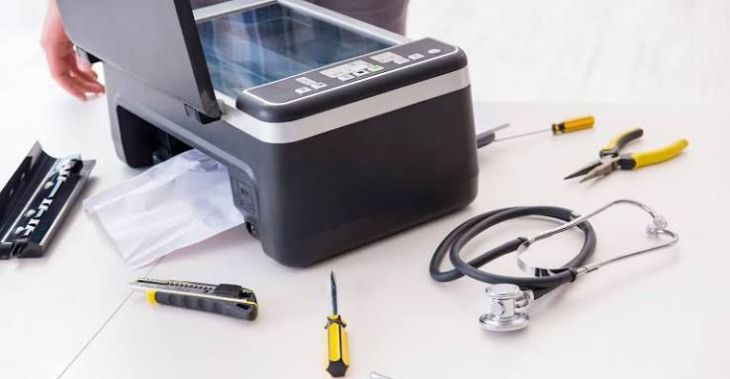
If your Brother printer shows the Print Unable 03 error, attempt manual cleaning. Open the printer, gently remove any accumulated debris or ink from internal parts using a soft cloth. Then, restart the printer and attempt to print once more.
.jpg)
.jpg)




.jpg)
.jpg)
.jpg)
.jpg)
.jpg)
.jpg)
.png)
.png)

.jpg)
.jpg)
.jpg)
.jpg)
.jpg)
.jpg)
.jpg)

.jpg)