
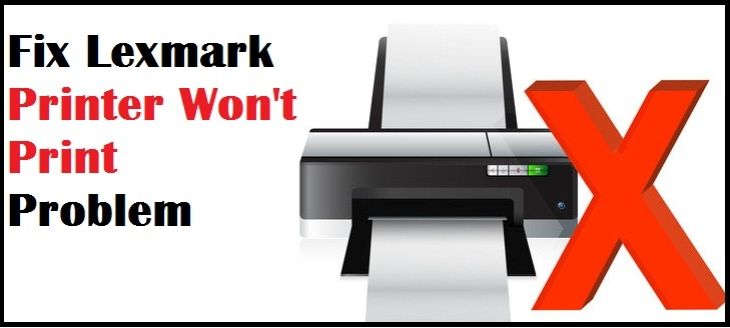
Diagnose and Correct Unable to print from Tray 2 on Lexmark printer
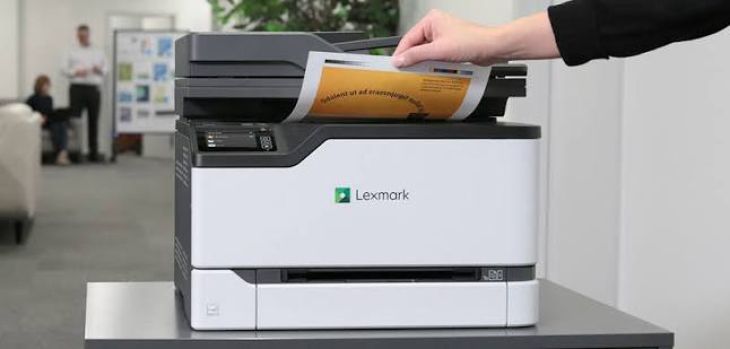
A Lexmark printer is a laser-based computer printer designed for producing digital images on paper. This guide aims to provide instructions for troubleshooting and resolving issues with a Lexmark printer that is unable to print from its second tray. There are several potential causes for this problem, and we will address these factors while discussing the "Lexmark Printer Not Printing from Tray 2" issue. In case you require further assistance, you can reach out to Lexmark's customer support for professional help.
Frequently Occurring Reasons for Lexmark Printer Not Printing from Tray 2
When your Lexmark printer refuses to print from Tray 2, several common causes may be responsible for this issue. To identify and address the problem, it's important to consider the following potential culprits:
Paper Misalignment: Sometimes, the paper in Tray 2 may not be properly aligned or loaded incorrectly. Ensure that the paper is loaded correctly and that the paper guides are set to the correct size.
Paper Size Mismatch: The paper settings on your Lexmark printer might not match the paper loaded in Tray 2. Verify that the printer settings correspond to the paper size in Tray 2.
Paper Type Mismatch: If the paper type in Tray 2 differs from what is configured in the printer settings, this can lead to printing issues. Ensure the paper type settings are accurate.
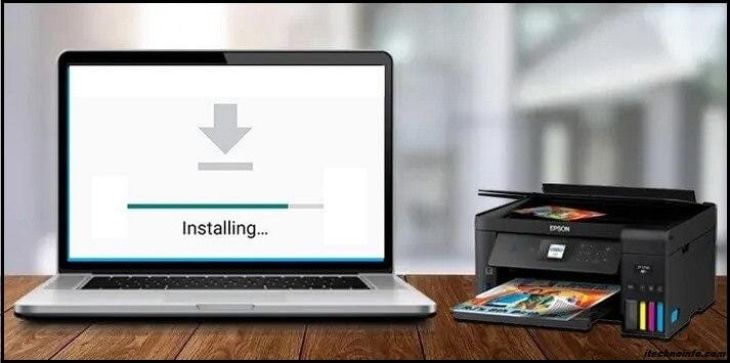
Outdated or Incorrect Drivers: Outdated or incompatible printer drivers can hinder Tray 2 printing. Confirm that you have the latest Lexmark printer drivers installed on your computer.
Tray 2 Sensor Issues: A malfunctioning sensor in Tray 2 can prevent the printer from recognizing the paper. Check for any sensor-related problems and clean or replace sensors if necessary.
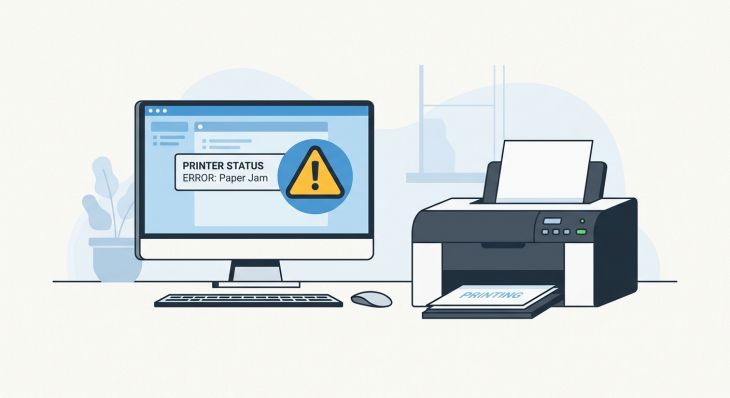
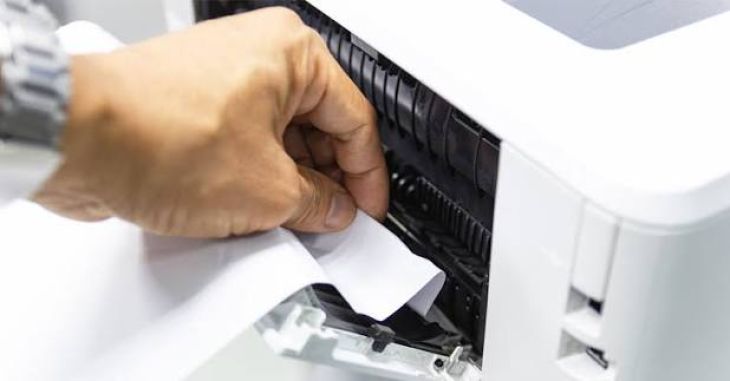
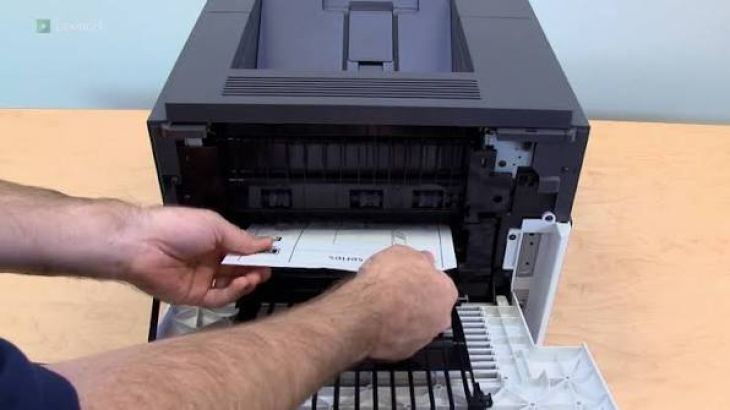
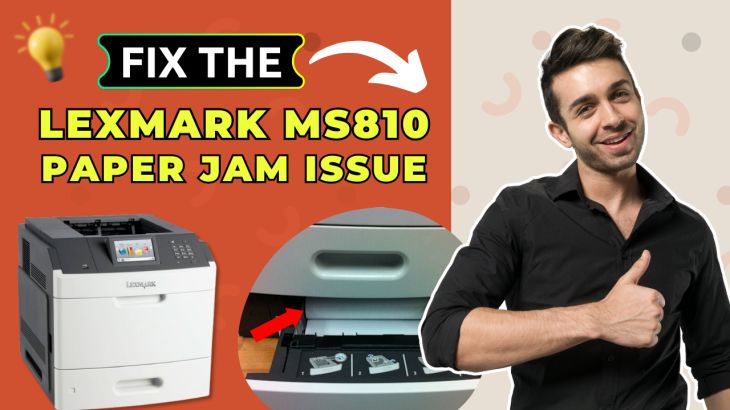
Paper Jams: Paper jams in Tray 2 can obstruct the printing process. Examine Tray 2 thoroughly for any paper jams and clear them before attempting to print again.
Printer Firmware Updates: Outdated printer firmware can result in compatibility issues. Make sure your Lexmark printer's firmware is up to date.
By investigating these common causes, you can pinpoint the issue preventing your Lexmark printer from printing from Tray 2 and take the necessary steps to resolve it effectively.
Lexmark Printer Not Printing from Tray 2 Troubleshooting Guide
Encountering difficulties with your Lexmark printer not printing from Tray 2 can be frustrating, but here are some troubleshooting tips to help you diagnose and rectify the problem:
Paper Alignment and Loading:
Check that the paper in Tray 2 is properly aligned and loaded evenly.
Ensure that the paper guides are correctly adjusted to match the paper size.
Paper Size Matching:
Confirm that the paper size selected in the printer settings matches the size of the paper loaded in Tray 2.
Adjust the settings if necessary.
Paper Type Verification:
Make certain that the paper type setting in the printer aligns with the type of paper present in Tray 2.
Correct the paper type setting if it's inaccurate.
Update Printer Drivers:
Visit the Lexmark website and download the latest printer drivers compatible with your printer model and operating system.
Install the most recent drivers for the best performance and compatibility.
Inspect Tray 2 Sensors:
Check for any malfunctioning sensors in Tray 2 that might be preventing the printer from recognizing the paper.
Clean or replace sensors as needed to restore functionality.
Address Paper Jams:
Carefully examine Tray 2 for any paper jams or obstructions.
Gently remove any stuck paper, ensuring there are no remnants that could cause further issues.
Firmware Updates:
Access the Lexmark printer's settings menu to verify if a firmware update is available.
If an update is available, install it to ensure your printer operates with the latest software.
Network and Connectivity:
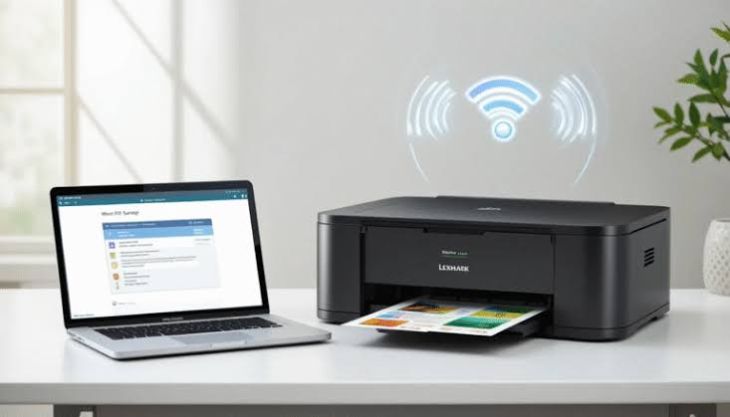
If your Lexmark printer is networked, inspect the network connection.
Restart both the printer and your router to refresh the connection if necessary.
FAQS
How do I Get my Printer to Print from Tray 2?
To make your printer print from Tray 2, follow these steps:
Check Paper Alignment: Ensure the paper is loaded evenly and aligned in Tray 2.
Verify Paper Size: Match the paper size in Tray 2 with the printer settings.
Confirm Paper Type: Ensure the paper type setting matches the actual paper type in Tray 2.
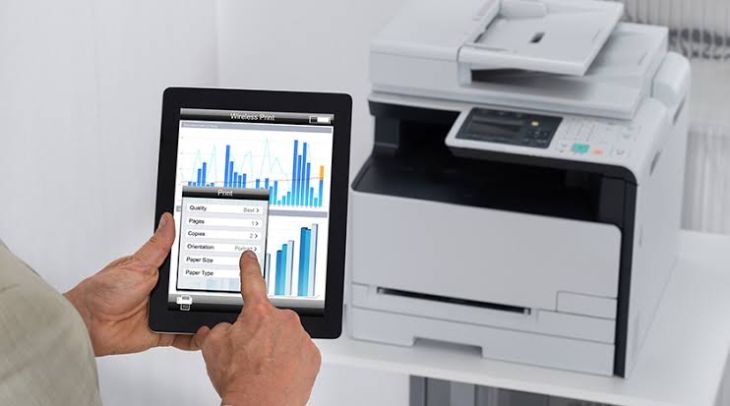
Select Tray 2: In the printer settings on your computer, specify Tray 2 as the paper source.
Restart and Test: Restart the printer and print a test page to confirm it's printing from Tray 2. Adjust settings as needed.
On my Lexmark printer, how do I choose Tray 2?
To select Tray 2 on your Lexmark printer, follow these steps:
Access Printer Menu: On the printer's control panel, locate the menu button or touchscreen interface.
Navigate to Paper Settings: Use the menu or touchscreen to navigate to the "Paper Settings" or a similar option.
Choose Tray 2: Within the paper settings, select "Tray 2" or the appropriate tray option as the paper source.
Confirm and Save: Confirm your selection and save the changes by following on-screen prompts or pressing a "Save" button if available.
Why won't my printer print from the appropriate tray?
Several factors can cause a printer to not print from the correct tray:
Incorrect Tray Selection: Ensure you've chosen the right tray in your print settings.
Paper Size Mismatch: Check if the paper size in the tray matches the settings; discrepancies can cause issues.
Paper Type Mismatch: Verify the paper type setting; it must match the paper in the tray.
Tray Sensor Issues: Malfunctioning sensors can lead to incorrect tray selection.
Driver Settings: Incorrect driver settings on your computer can cause the printer to select the wrong tray.
Why only Tray 1 of my printer prints?
If your printer is only printing from Tray 1, several common reasons might be causing this issue:
Default Tray
Paper Size Mismatch
Paper Type Mismatch
Driver Settings
Tray Sensor Issues
.jpg)
.jpg)



.jpg)
.jpg)
.jpg)
.jpg)
.jpg)
.jpg)
.png)
.png)
.jpg)
.jpg)
.jpg)
.jpg)
.jpg)
.jpg)
.jpg)

.jpg)
.jpg)