
Canon Printer Offline Error – Step-by-Step Solution
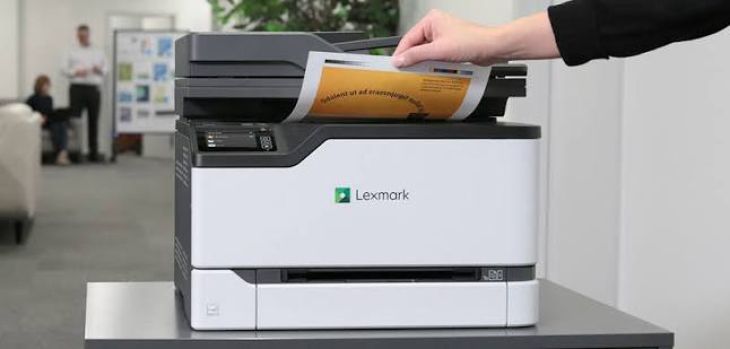
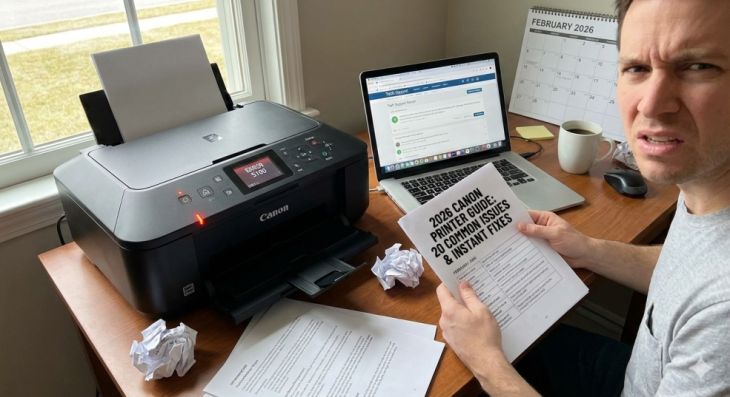
Canon printers are widely used in homes, schools, and offices because of their reliable performance and excellent print quality. Whether you print important business documents, school projects, or personal files, you expect your printer to work whenever you need it. However, many users occasionally encounter a frustrating problem where their Canon printer suddenly shows an offline status.
What Does a Canon Printer Offline Error Mean?
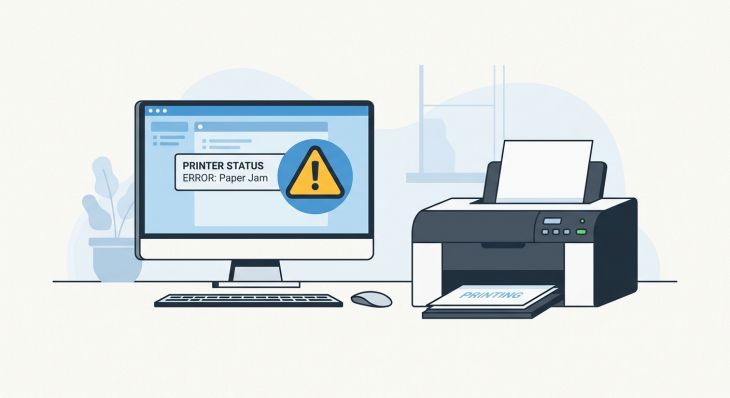
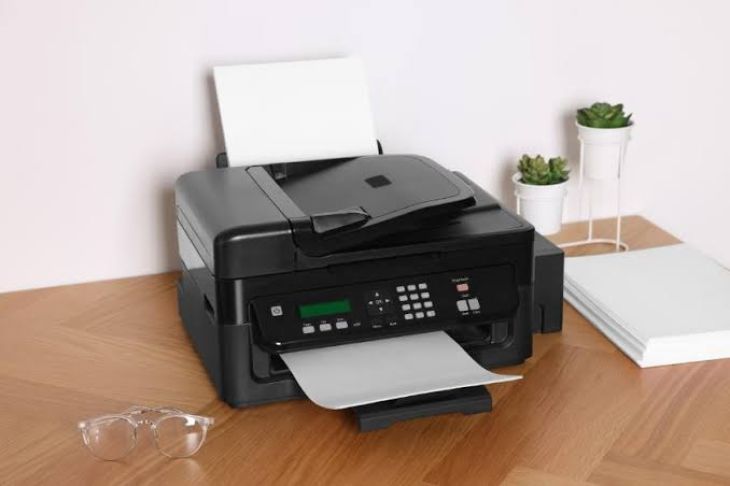
A Canon printer offline error means that your computer cannot establish communication with the printer. Although the printer may be powered on, the operating system treats it as unavailable and prevents print jobs from being processed.
This issue can occur with both wired and wireless Canon printers and may affect one or multiple devices connected to the printer.
Common Causes of Canon Printer Offline Errors
Several factors can trigger an offline error.
Weak or Interrupted Network Connection
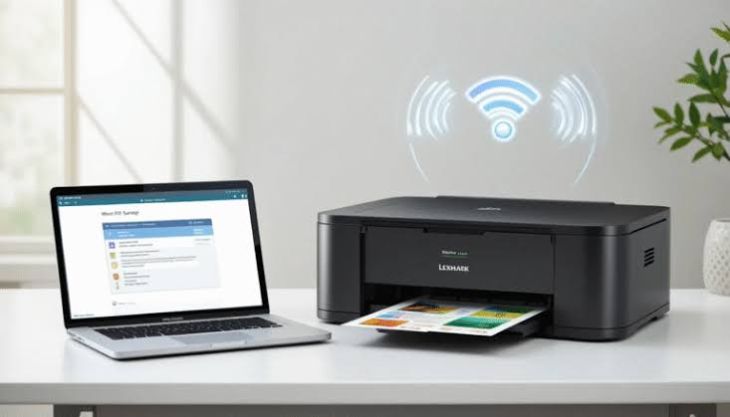
Wireless printers depend on a stable network connection. If the printer loses connection to the network, it may appear offline.
Loose Cable Connections
For wired printers, damaged or disconnected cables can interrupt communication between the printer and the computer.
Incorrect Printer Settings
If the printer is accidentally set to work offline or another printer is selected as the default device, print jobs may not reach the Canon printer.
Outdated Printer Drivers
Old or corrupted drivers may prevent the computer from communicating properly with the printer.
Stuck Print Jobs
A failed print job can remain in the queue and block communication with the printer.
Print Spooler Problems
The print spooler service manages print jobs. If it encounters an issue, the printer may appear offline.
Temporary Software Glitches
System updates or software conflicts can occasionally interfere with printer communication.
Signs That Your Canon Printer Is Offline
You may notice the following symptoms:
-
The printer displays an offline status.
-
Documents remain in the print queue.
-
Print jobs do not start.
-
The computer cannot detect the printer.
-
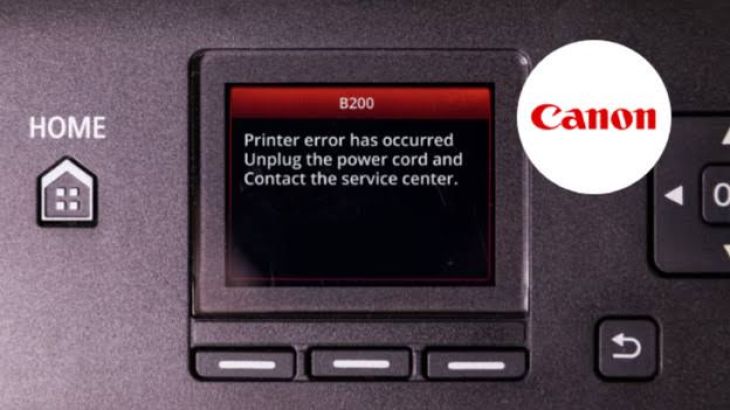
Error messages appear during printing.
-
The printer does not respond to commands.
-
Wireless printing stops unexpectedly.
Step-by-Step Solutions to Bring Your Canon Printer Back Online
Step One: Check the Printer Power
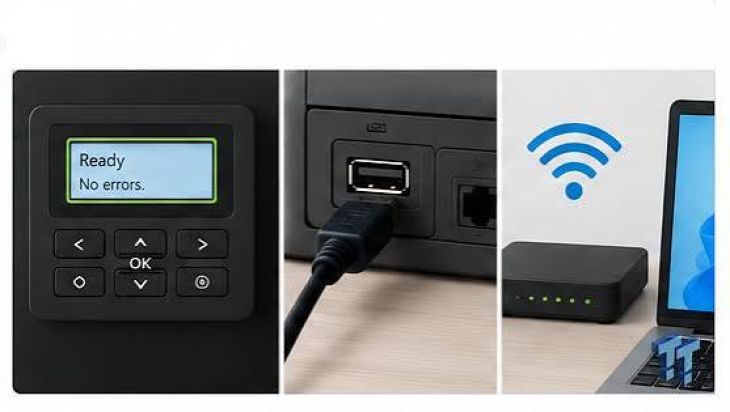
Make sure the printer is turned on and fully initialized. If the display screen is blank, verify that the power cable is securely connected.
Step Two: Verify the Printer Connection
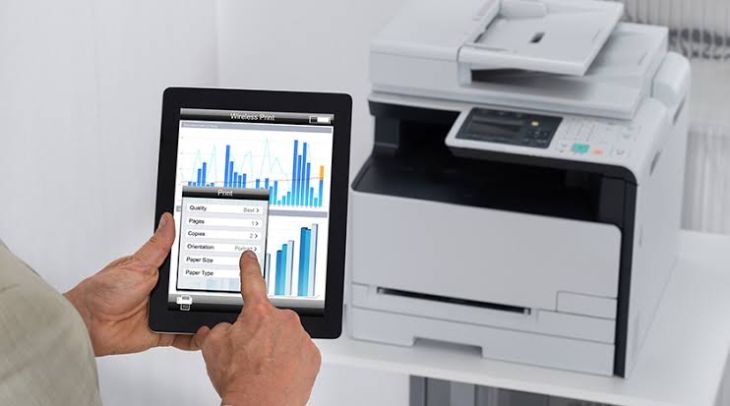
If you are using a wireless printer, ensure it is connected to the correct WiFi network. For wired printers, check the cable connections and reconnect them if necessary.
Step Three: Restart the Printer
Turn off the printer, wait briefly, and then power it back on. Restarting often clears temporary communication issues.
Step Four: Restart Your Computer
Restarting your computer refreshes system processes and may restore communication between the printer and the operating system.
Step Five: Set the Canon Printer as the Default Printer
Open your printer settings and confirm that the Canon printer is selected as the default printer.
Step Six: Disable the Work Offline Option
Check your printer settings and make sure the option that allows the printer to work offline is disabled.
Step Seven: Clear the Print Queue
Remove all pending print jobs from the queue and then attempt to print a new document.
Step Eight: Restart the Print Spooler Service
Restarting the print spooler can resolve issues involving stuck print jobs and communication failures.
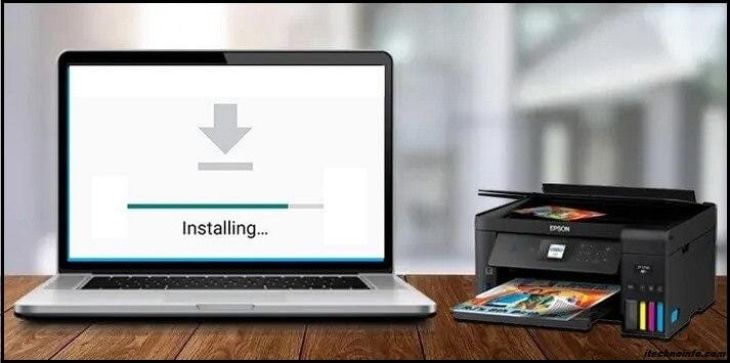
Step Nine: Update the Printer Driver
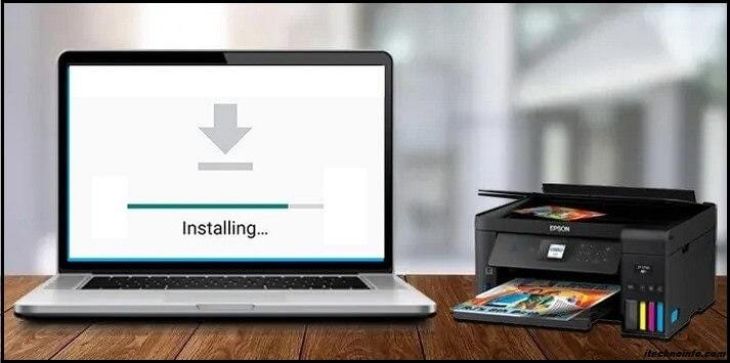
Install the latest Canon printer driver compatible with your operating system. Updated drivers often improve stability and performance.
Step Ten: Reinstall the Printer
If the problem continues, remove the printer from your device and install it again. A fresh installation can correct configuration issues.
Step Eleven: Run the Printer Troubleshooter
Use the built-in printer troubleshooting tool available in your operating system to identify and fix common problems automatically.
Tips to Prevent Canon Printer Offline Errors
Following these best practices can help keep your printer connected and available.
-
Keep printer drivers updated.
-
Maintain a stable wireless connection.
-
Use quality cables for wired connections.
-
Clear completed print jobs regularly.
-
Keep your operating system updated.
-
Restart the printer occasionally.
-
Ensure the printer remains connected to the correct network.
-
Perform routine printer maintenance.
-
Avoid disconnecting the printer during printing.
-
Check printer settings after major software updates.
Common Mistakes to Avoid
Avoiding these common mistakes can reduce future offline issues.
-
Ignoring driver updates.
-
Using damaged cables.
-
Leaving print jobs stuck in the queue.
-
Selecting the wrong default printer.
-
Disconnecting the printer while printing.
-
Skipping routine maintenance.
-
Ignoring network connection problems.
FAQs
Why does my Canon printer keep going offline?
This is usually caused by network interruptions, incorrect printer settings, outdated drivers, or communication issues between the printer and your computer.
Can restarting the printer fix the offline error?
Yes. Restarting the printer often clears temporary communication problems and restores connectivity.
Why are my print jobs stuck in the queue?
Failed print jobs, software conflicts, or print spooler issues can prevent documents from printing and leave them stuck in the queue.
Should I update my Canon printer driver?
Yes. Updated drivers improve compatibility, performance, and communication with your operating system.
How can I stop my Canon printer from going offline again?
Keep your drivers updated, maintain a stable connection, perform routine maintenance, clear print jobs regularly, and ensure the correct printer settings are selected.
Conclusion
A Canon printer offline error can interrupt your workflow, but the issue is usually easy to resolve. Most offline problems are caused by connection issues, incorrect settings, outdated drivers, print queue errors, or temporary software conflicts. By following the step-by-step solutions in this guide, you can restore communication between your computer and printer and resume printing without unnecessary delays.

.jpg)
.jpg)



.jpg)
.jpg)
.jpg)
.jpg)
.jpg)
.jpg)
.png)
.png)

.jpg)
.jpg)
.jpg)
.jpg)
.jpg)
.jpg)
.jpg)

.jpg)
.jpg)