
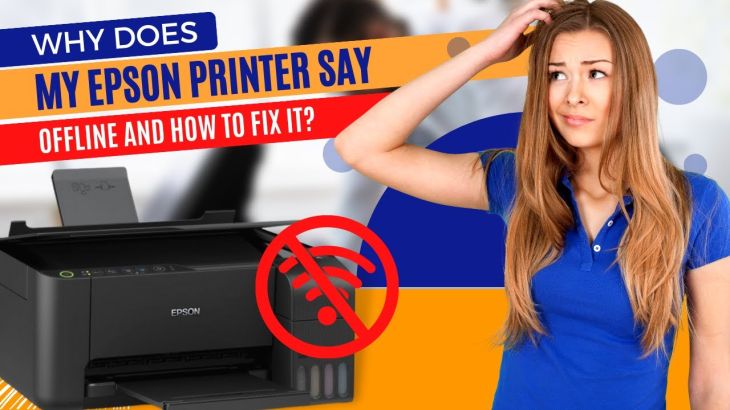
Epson Printer Offline
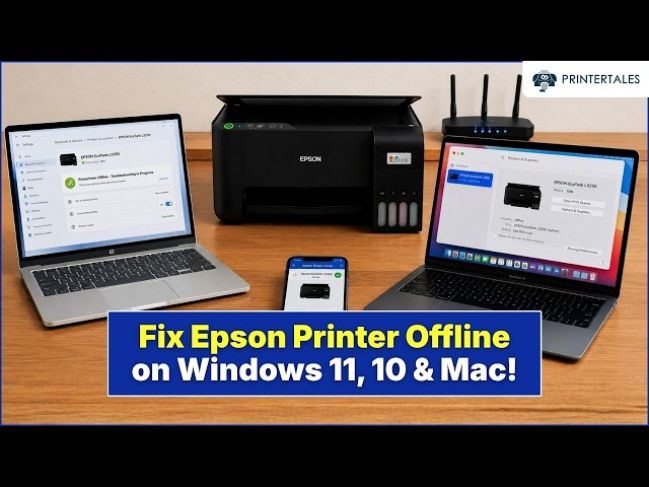
Epson Printer Offline? Here's How to Bring It Back Online
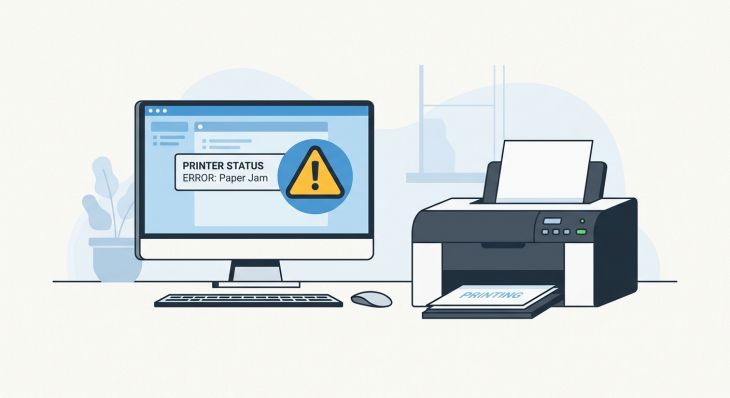
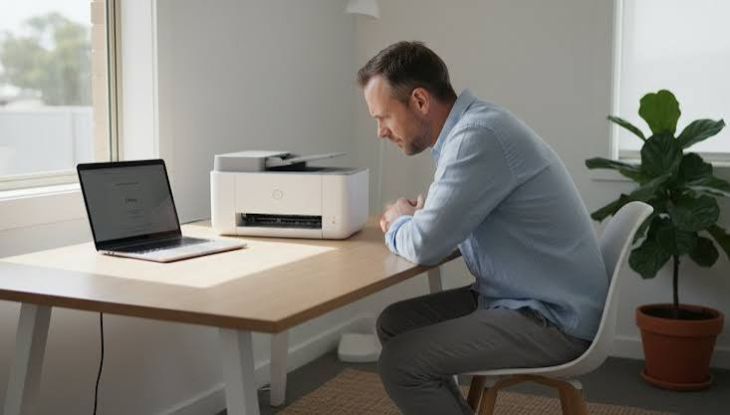
An Epson printer is a reliable choice for printing documents, photos, and everyday paperwork. Whether you use it at home, in a small office, or for business purposes, you expect it to work whenever you need it. However, one of the most common issues users experience is seeing the printer display an offline status. When this happens, documents remain in the print queue, and the printer does not respond to print commands, even though it is powered on.
An offline printer does not always mean there is a serious problem with the device. In many cases, the issue is related to a disrupted connection, incorrect printer settings, outdated drivers, or temporary software glitches. The good news is that most offline printer problems can be resolved without replacing any hardware.
Why Does an Epson Printer Go Offline?
There are several reasons why your Epson printer may appear offline. Some of the most common causes include:
Weak Network Connection
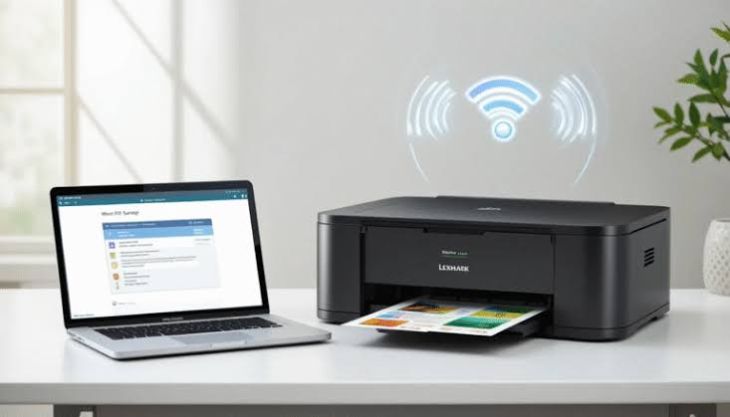
Wireless Epson printers rely on a stable network connection. If the connection is interrupted, the computer may no longer communicate with the printer.
Loose or Damaged Cable
For wired printers, a damaged or disconnected cable can prevent the computer from detecting the printer.
Incorrect Printer Settings
If the printer is accidentally set to work offline or another printer is selected as the default device, print jobs may not reach the Epson printer.
Outdated Printer Driver
An outdated or corrupted printer driver can interrupt communication between your computer and the printer.
Stuck Print Queue
A failed print job may block all future print requests until the queue is cleared.
Print Spooler Problems
The print spooler manages print jobs before sending them to the printer. If it stops working properly, the printer may appear offline.
Signs That Your Epson Printer Is Offline
You may notice one or more of the following symptoms:
-
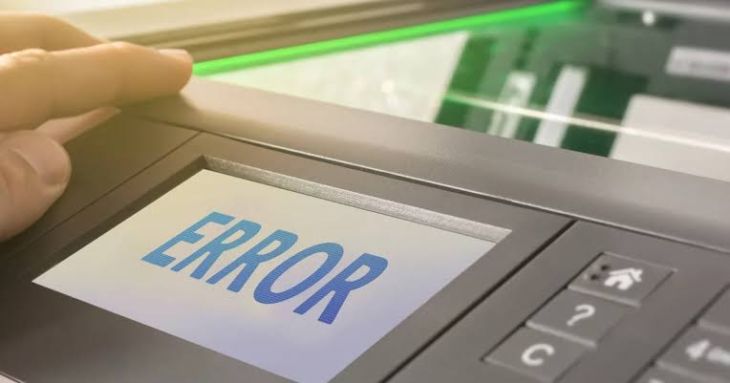
The printer displays an offline status.
-
Print jobs remain pending.
-
Documents do not print.
-
The computer cannot communicate with the printer.
-
Error messages appear while printing.
-
The printer does not respond to commands.
-
The printer icon shows as unavailable.
How to Bring Your Epson Printer Back Online
Check the Printer Power
Make sure the printer is switched on and has completed its startup process. If the display is blank, verify that the power cable is connected securely.
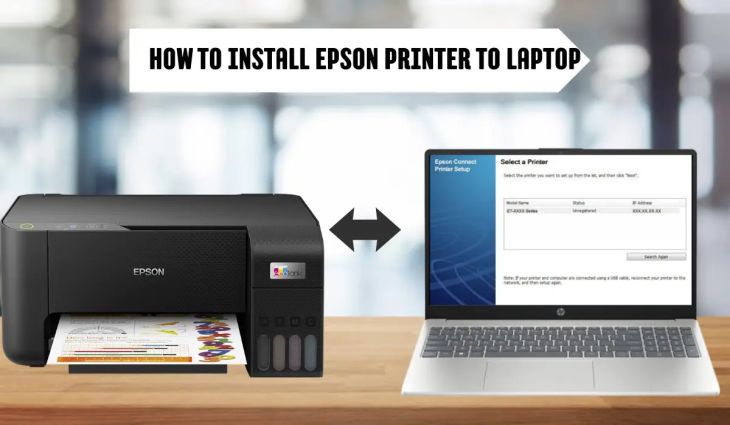
Verify the Printer Connection
For wireless printers, ensure the printer is connected to the correct wireless network. If you are using a wired connection, inspect the cable for any damage and reconnect it if necessary.
Restart the Printer
Turn the printer off, wait for a short time, and then turn it back on. Restarting often clears temporary communication issues.
Restart Your Computer
Restarting your computer refreshes system processes and may restore communication between the computer and the printer.
Set the Epson Printer as the Default Printer
Open your printer settings and confirm that the Epson printer is selected as the default printing device.
Disable the Offline Mode
If the printer has been set to work offline, change the setting so it can communicate with your computer normally.
Clear the Print Queue
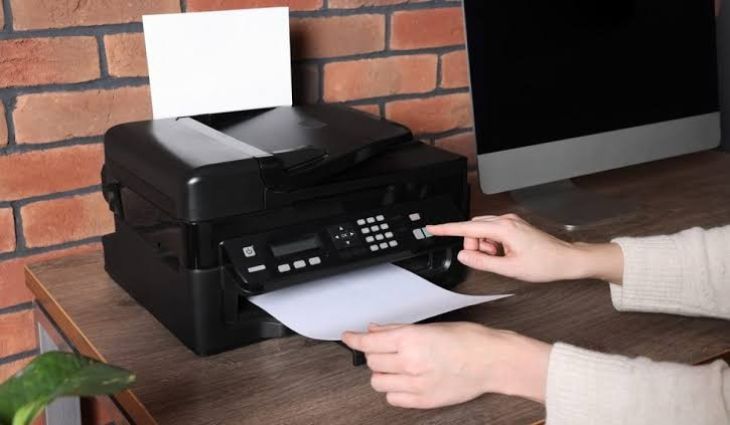
Delete any pending print jobs and send a fresh print request after the queue is empty.
Restart the Print Spooler
Restarting the print spooler service can resolve problems involving stuck print jobs and printer communication.
Update the Printer Driver
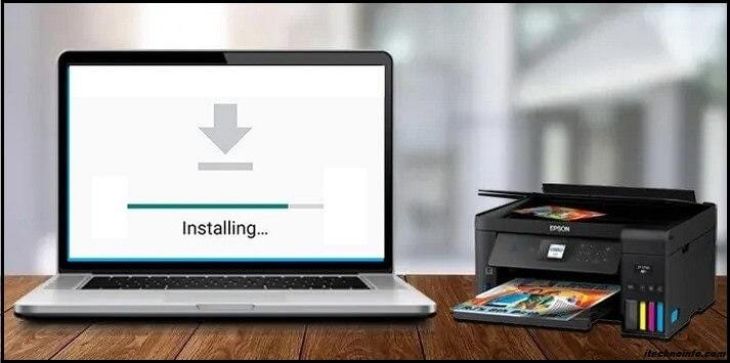
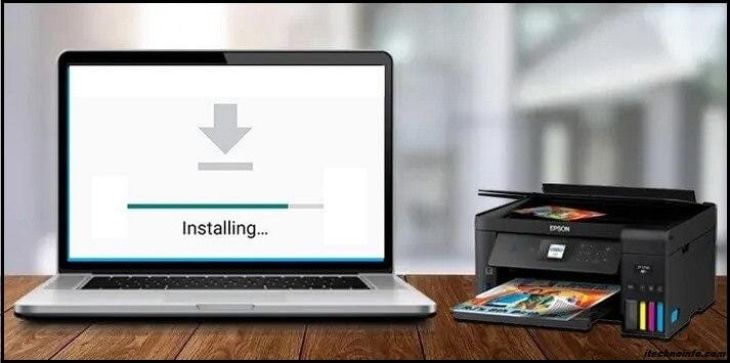
Install the latest Epson printer driver compatible with your operating system. Updated drivers improve compatibility and overall performance.
Reinstall the Printer
If none of the previous methods work, remove the printer from your computer and install it again. A fresh installation often resolves configuration issues.
Run the Printer Troubleshooter
Most operating systems include a built-in printer troubleshooter that can automatically identify and resolve common printing problems.
Tips to Prevent Your Epson Printer from Going Offline
Following these simple practices can help keep your printer connected and ready to print.
-
Keep your printer driver updated.
-
Maintain a strong and stable wireless connection.
-
Use high-quality cables for wired connections.
-
Clear completed print jobs regularly.
-
Restart your printer occasionally.
-
Keep your operating system updated.
-
Place the printer within range of the wireless router.
-
Perform regular printer maintenance.
-
Avoid disconnecting the printer while printing.
-
Check printer settings after major system updates.
Common Mistakes to Avoid
Avoiding these mistakes can reduce future offline issues.
-
Ignoring printer software updates.
-
Using damaged connection cables.
-
Leaving print jobs stuck in the queue.
-
Selecting the wrong default printer.
-
Disconnecting the printer during active printing.
-
Changing wireless settings without reconnecting the printer.
-
Skipping routine printer maintenance.
FAQs
Why does my Epson printer keep showing offline?
This usually happens because of connection problems, incorrect printer settings, outdated drivers, or temporary software issues.
Can restarting the printer fix the offline problem?
Yes. Restarting the printer often clears temporary communication errors and restores normal operation.
Should I update my Epson printer driver?
Yes. Installing the latest driver improves compatibility, performance, and communication with your computer.
Why are my print jobs stuck in the queue?
Print jobs may become stuck because of communication problems, print spooler issues, or incorrect printer settings.
How can I prevent my Epson printer from going offline again?
Keep your printer driver updated, maintain a stable network connection, perform regular maintenance, clear the print queue regularly, and ensure the correct printer settings are selected.
Conclusion
An Epson printer showing an offline status can interrupt your work, but the issue is usually easy to resolve. Most offline problems are caused by network interruptions, incorrect settings, outdated drivers, or temporary software issues rather than hardware failure. By checking your connections, clearing the print queue, updating the printer driver, and reviewing your printer settings, you can restore your Epson printer to online status quickly.
.jpg)
.jpg)



.jpg)
.jpg)
.jpg)
.jpg)
.jpg)
.jpg)
.png)
.png)
.jpg)
.jpg)
.jpg)
.jpg)
.jpg)
.jpg)
.jpg)
.jpg)
.jpg)