.jpg)
Paper Mismatch Error Resolved by HP Printer Error Code E2
If you encounter HP error E2, it means a mismatch between your printer's paper length settings and the loaded paper size. This issue can result from incorrect settings, improperly loaded paper, or paper jams. This guide provides detailed steps to resolve HP Printer Error Code E2, ensuring a hassle-free printing experience. Before proceeding, it's essential to cancel all ongoing print jobs to prevent any future disruptions.
What Causes HP Printer Error Code E2?
HP Printer Error Code E2 typically occurs due to various factors:
Paper Size Mismatch: When the paper size specified in the settings doesn't match the actual paper size loaded in the printer.
Incorrect Settings: Misconfigured printer settings, such as the paper type or size, can trigger this error.
Improper Paper Loading: If the paper is not loaded correctly in the tray or if it's overloaded, it can lead to E2 errors.
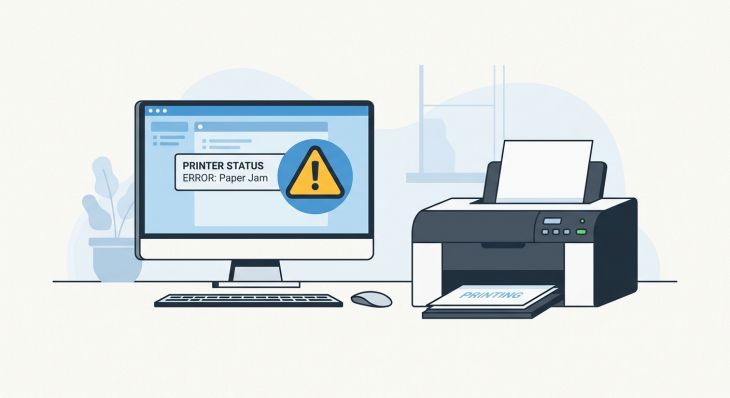
Paper Jam: Any obstruction in the paper path, like a paper jam, can also trigger this error.
Identifying and addressing these causes is essential to resolve HP Printer Error Code E2 effectively.
How to Diagnose and Repair the HP Printer Error Code E2?
To troubleshoot and resolve HP Printer Error Code E2, indicating a paper mismatch issue, follow these steps:
Cancel Print Jobs: First, cancel all print jobs in the queue to prevent any interference during troubleshooting.
Check Paper Size Settings:
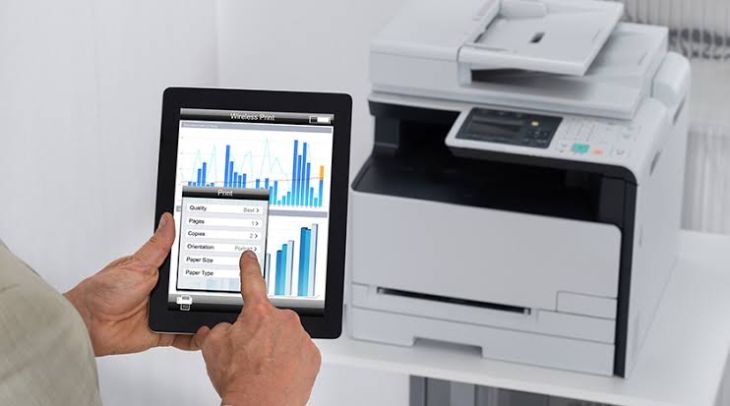
Verify that the paper size settings in your printer software match the actual paper loaded in the tray.
Adjust the settings if necessary to ensure they match.
Reload Paper Correctly:
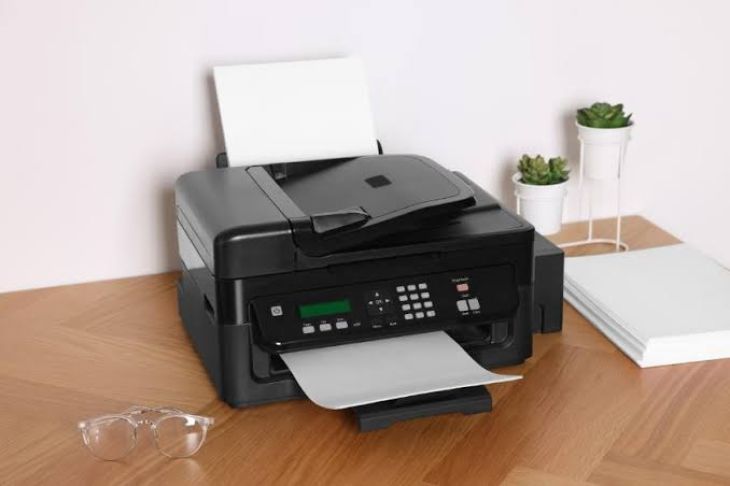
Properly load the paper into the printer tray, ensuring it's aligned and not overfilled.
Be sure to use the correct paper size as specified in the settings.
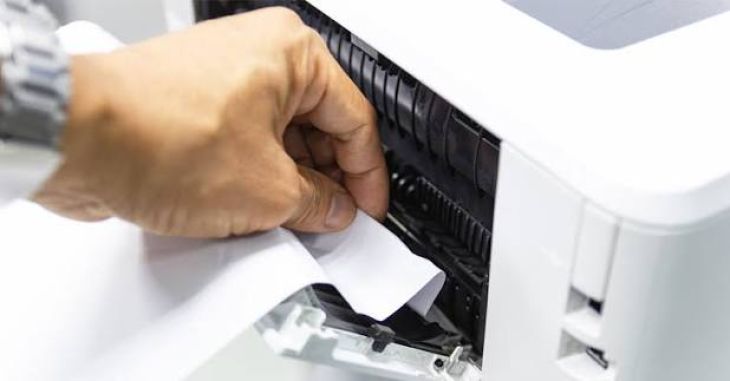
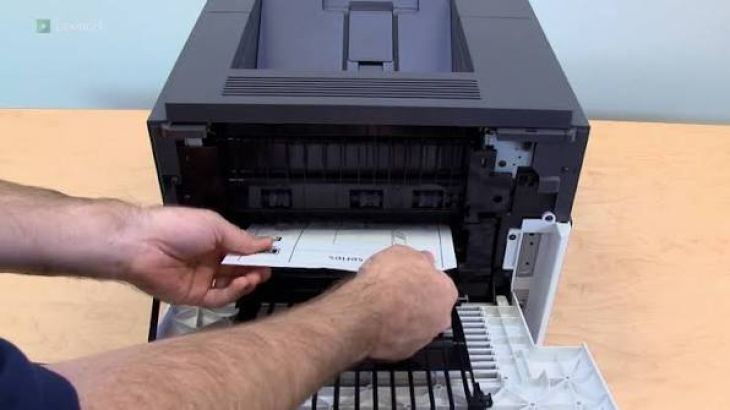
Clear Paper Jams:
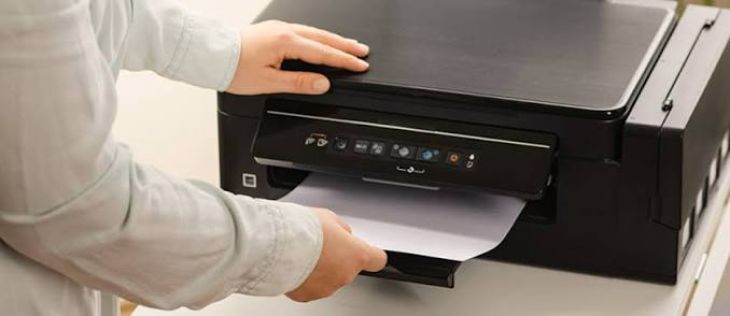
If you suspect a paper jam, carefully open the printer and remove any jammed paper, following the manufacturer's instructions.
Restart the Printer:
Power off the printer, disconnect it from the power source, and wait for a few minutes.
The printer should be reconnected and turned back on.
Test Print:
Print a test page to confirm that the error has been resolved and that the printer is functioning correctly.
Update Drivers:
Ensure you have the latest printer drivers installed. If not, download and install them from the HP website.
Reset Printer:
If the error persists, perform a printer reset to restore default settings. Consult your printer's manual for reset instructions.
By following these steps, you should be able to troubleshoot and fix HP Printer Error Code E2 related to paper size mismatch, allowing you to resume printing without further issues.
FAQs
How do I Fix Error Code E2 on HP Printer?
First, make sure your paper size settings are appropriate for the kind of paper you are using in order to resolve HP Printer Error Code E2. Try reloading the paper into the printer if the settings are accurate but you are still getting the problem. To ensure that the paper feeds into the printer properly, load it properly. In case the issue persists, there can also be a paper jam in the printer. Look for any paper jams and take the papers out of the printer. After removing any paper jams, try printing one more.
How do I Clear E2 Error?
To clear an E2 error:
Cancel ongoing print jobs.
Verify and adjust paper size settings to match loaded paper.
Ensure paper is loaded correctly, without overfilling.
Remove any paper jams following the manufacturer's instructions.
Power off the printer, disconnect it, and wait a few minutes.
Reconnect and power on the printer.
Print a test page to confirm error resolution.
Update printer drivers if necessary.
If the issue persists, consult the printer manual for a reset or seek professional help.
What does E2 Error Mean?
The E2 error code typically indicates a paper size or paper load mismatch in a printer. It means that the paper settings configured in the printer do not align with the actual paper size or loading condition in the paper tray. This error can occur due to incorrect settings, improperly loaded paper, or paper jams. Addressing the E2 error involves verifying and adjusting settings, ensuring proper paper loading, and clearing any paper obstructions.
How do I Fix the Error Code on my HP Printer?
To resolve an error code on your HP Printer:
Identify the specific error code and its meaning by referring to your printer's manual or online resources.
Cancel any ongoing print jobs to avoid conflicts.
Follow the recommended troubleshooting steps provided in the printer manual or on the manufacturer's website for the specific error code.
If the issue persists, consider updating printer drivers or contacting HP customer support for further assistance.
.jpg)
.jpg)

.jpg)
.jpg)
.jpg)
.jpg)
.jpg)
.jpg)
.png)
.png)
.jpg)
.jpg)
.jpg)
.jpg)
.jpg)
.jpg)
.jpg)
.jpg)