
.jpg)
How to Reset an Epson Printer to Factory Settings?
Epson printers are known for their dependable performance, excellent print quality, and user-friendly features. Whether you use your printer for personal, educational, or business purposes, it is designed to handle everyday printing tasks efficiently. However, there may be times when the printer experiences persistent problems that cannot be resolved through basic troubleshooting. In such situations, resetting the printer to its factory settings can often help restore normal operation.
When Should You Reset an Epson Printer?
A factory reset is recommended when other troubleshooting methods have not resolved the issue.
Common situations include:
-
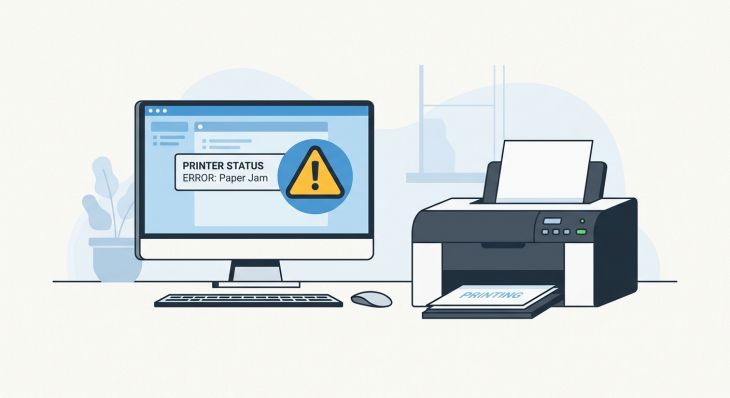
The printer repeatedly displays error messages.
-
The printer cannot connect to a wireless network.
-
Incorrect network settings prevent printing.
-
The printer remains offline after troubleshooting.
-
You are setting up the printer on a new network.
-
The printer is being transferred to another user.
-
Software settings have become corrupted.
-
You want to remove saved printer configurations.
What Happens During a Factory Reset?
When you reset your Epson printer to its factory settings, the printer returns to its default configuration.
The reset typically removes:
-
Saved wireless network settings.
-
Customized printer preferences.
-
Stored network information.
-
User-configured settings.
-
Previous connection information.
After the reset, you will need to reconnect the printer to your wireless network and complete the setup process again.
How to Reset an Epson Printer to Factory Settings
Turn On the Printer
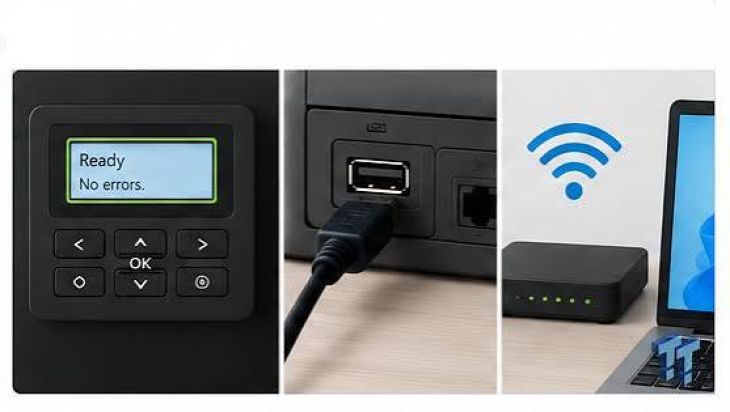
Make sure the printer is powered on and has completed its startup process before beginning the reset.
Open the Printer Menu
Use the printer's control panel to access the settings menu. Navigate carefully through the available options until you locate the reset or restore settings menu.
Select the Factory Reset Option
Choose the option that restores the printer to its original factory settings. Read the confirmation message carefully before proceeding.
Confirm the Reset
Once confirmed, the printer will begin removing the stored settings. The process may take a few moments to complete.
Allow the Printer to Restart
After the reset finishes, the printer may restart automatically. Wait until the startup process is complete before performing any additional tasks.
Reconnect to the Wireless Network
Since the saved network information has been removed, reconnect the printer to your wireless network using the appropriate setup method.
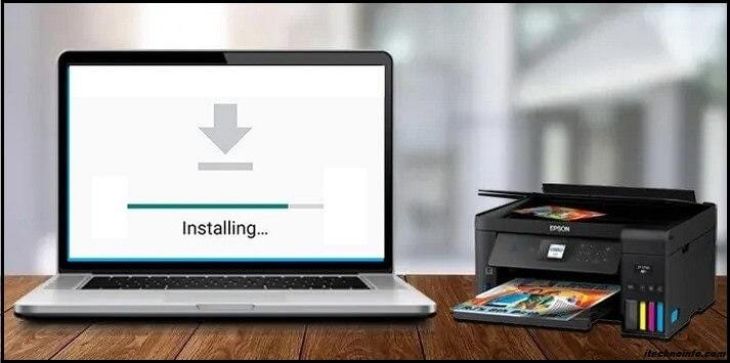
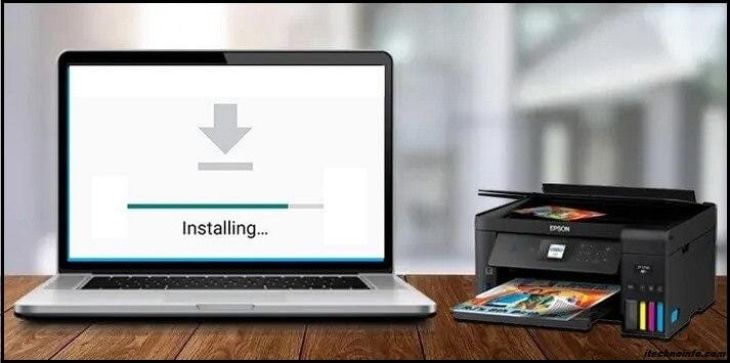
Install or Update the Printer Driver
If necessary, ensure that the latest Epson printer driver is installed on your computer for proper communication with the printer.
Print a Test Page
After completing the setup, print a test page to confirm that the printer is functioning correctly.
What to Do After Resetting Your Epson Printer
Completing a few additional steps ensures the printer is ready for normal use.
-
Connect the printer to the correct wireless network.
-
Verify that the printer is selected as the default printer.
-
Update the printer firmware if an update is available.
-
Check the ink levels.
-
Perform a nozzle check if print quality has been affected.
-
Clean the print head if necessary.
-
Confirm that your computer can detect the printer.
-
Test both printing and scanning functions.
Tips to Avoid Future Printer Problems
Regular maintenance can help reduce the need for factory resets.
-
Keep the printer driver updated.
-
Install firmware updates whenever available.
-
Maintain a stable wireless connection.
-
Restart the printer occasionally.
-
Perform routine print head cleaning.
-
Use high-quality paper and genuine Epson ink cartridges.
-
Keep the printer clean and free from dust.
-
Avoid changing network settings unnecessarily.
-
Shut down the printer properly after use.
-
Perform regular printer maintenance.
Common Mistakes to Avoid
Avoid these common mistakes when resetting your Epson printer.
-
Resetting the printer before trying basic troubleshooting.
-
Forgetting your wireless network information before resetting.
-
Interrupting the reset process.
-
Disconnecting the printer while it is restarting.
-
Skipping the printer setup after the reset.
-
Ignoring available firmware updates.
-
Installing incompatible printer drivers.
Benefits of Resetting Your Epson Printer
A factory reset can resolve many software-related issues without requiring hardware repairs.
Some of the benefits include:
-
Removes incorrect settings.
-
Resolves many network configuration problems.
-
Clears software conflicts.
-
Restores default printer performance.
-
Simplifies setup on a new wireless network.
-
Improves communication with connected devices.
Although a factory reset is not required for every problem, it can be an effective solution when other troubleshooting methods have not worked.
FAQs
When should I reset my Epson printer?
A factory reset is recommended when your printer has persistent software, network, or configuration issues that cannot be resolved through basic troubleshooting.
Will resetting my Epson printer delete my wireless settings?
Yes. A factory reset usually removes saved wireless network information and other customized settings.
Do I need to reconnect my printer after the reset?
Yes. After resetting the printer, you will need to reconnect it to your wireless network and complete the setup process again.
Can a factory reset fix printing problems?
It can resolve issues caused by incorrect settings or software conflicts. However, hardware-related problems may require additional troubleshooting.
How can I reduce the need for future factory resets?
Keep your printer software updated, maintain a stable network connection, perform regular maintenance, and avoid unnecessary changes to printer settings.
Conclusion
Resetting an Epson printer to its factory settings is a practical way to resolve persistent software and network-related issues. Whether your printer is experiencing wireless connection problems, incorrect settings, or repeated error messages, restoring the default configuration often provides a fresh start.
.jpg)
.jpg)



.jpg)
.jpg)
.jpg)
.jpg)
.jpg)
.jpg)
.png)
.png)

.jpg)
.jpg)
.jpg)
.jpg)
.jpg)
.jpg)
.jpg)
.jpg)