
.jpg)
How do I reset my Epson printer to a new Wi-Fi?
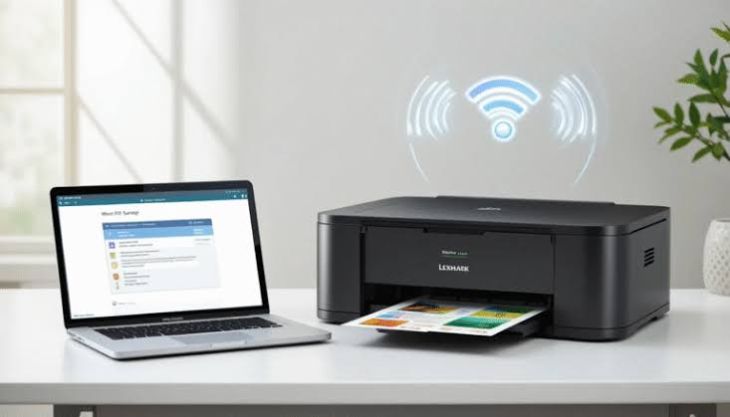
Changing your wireless network is common when you replace your internet router, update your home network, or move your Epson printer to a different location. When this happens, your Epson printer will still try to connect to the old wireless network, making it impossible to print wirelessly until the new network information is entered.
Why You May Need to Reset Your Epson Printer to a New Wi-Fi
There are several situations where resetting the wireless settings becomes necessary.
You Installed a New Router
A new router usually creates a different wireless network, requiring the printer to connect again.
You Changed Your Wi-Fi Name
If your wireless network name has changed, the printer will no longer recognize the previous connection.
You Updated Your Wi-Fi Password
Changing the wireless password prevents the printer from reconnecting until the new password is entered.
You Moved the Printer
Moving the printer to another home or office often requires connecting it to a different wireless network.
Connection Problems
Sometimes resetting the wireless settings can resolve ongoing connectivity issues.
Signs Your Epson Printer Needs a Wi-Fi Reset
You may notice one or more of the following symptoms.
-
The printer displays a wireless connection error.
-
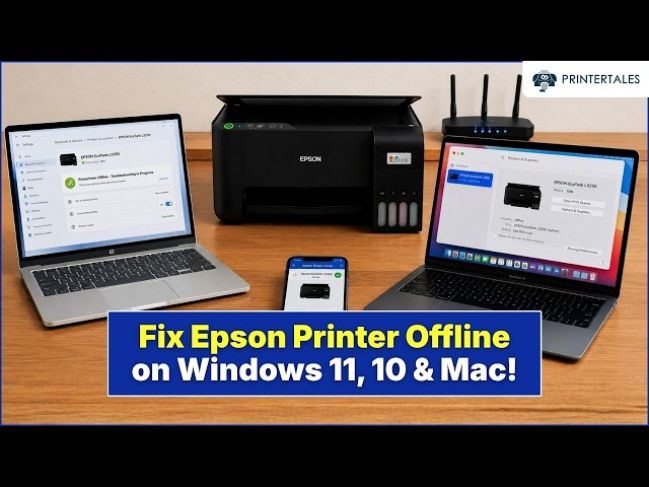
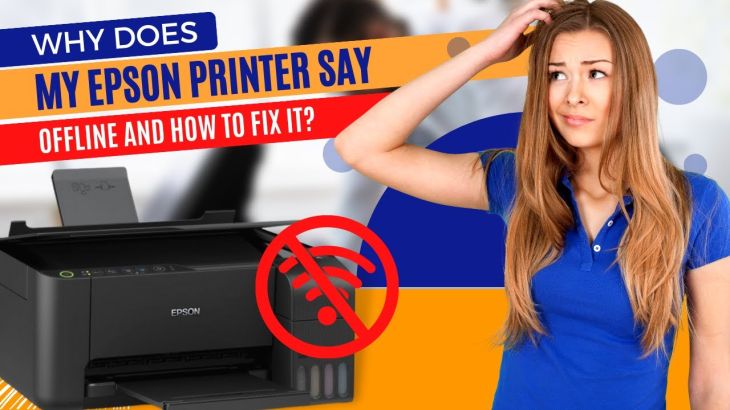
The printer appears offline.
-
Your computer cannot locate the printer.
-
Wireless printing suddenly stops working.
-
Print jobs remain pending.
-
The printer continues searching for the previous network.
-
The wireless indicator shows that the printer is disconnected.
These signs usually indicate that the printer is still trying to connect to an unavailable network.
How to Reset an Epson Printer to a New Wi-Fi
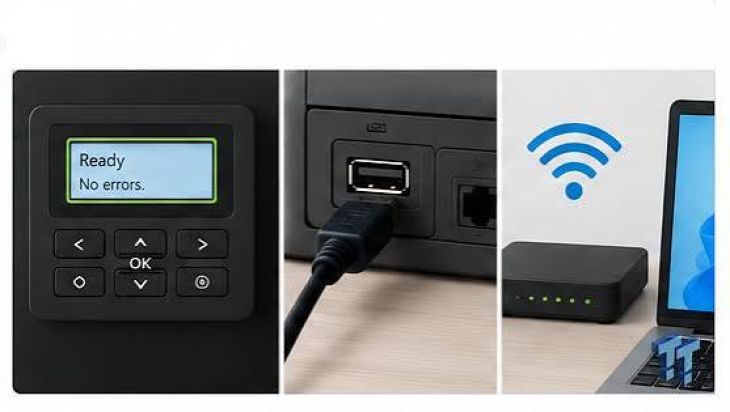
Turn On the Printer
Switch on the printer and allow it to finish its startup process before making any changes.
Open the Network Settings
Access the printer's network or wireless settings from the control panel.
Reset the Wireless Settings
Choose the option to restore or reset the printer's wireless network configuration. This removes the old Wi-Fi information stored in the printer.
Search for Available Networks
Allow the printer to search for nearby wireless networks.
Select Your New Wi-Fi Network
Choose your current wireless network from the list displayed on the printer.
Enter the Wireless Password
Carefully enter the correct password for your new wireless network.
Confirm the Connection
Allow the printer a few moments to establish the wireless connection.
Reconnect Your Computer
If necessary, update your computer's printer settings so it recognizes the printer on the new wireless network.
Print a Test Page
Print a sample document to verify that the printer is successfully connected to the new Wi-Fi network.
What to Do If the Printer Will Not Connect
Sometimes the connection may not succeed on the first attempt.
Restart the Printer
Turn the printer off, wait briefly, and then switch it back on.
Restart Your Router
Restarting the router can refresh the wireless network and resolve temporary communication problems.
Restart Your Computer
A computer restart may help detect the printer on the updated network.
Verify the Password
Double-check that the wireless password has been entered correctly.
Move the Printer Closer
Place the printer closer to the wireless router if the signal strength is weak.
Repeat the Wi-Fi Setup
If necessary, repeat the wireless setup process from the beginning.
Tips to Maintain a Stable Wireless Printer Connection
Following these practices can help prevent future connection issues.
-
Keep the printer within range of the wireless router.
-
Maintain a strong Wi-Fi signal.
-
Keep the printer software updated.
-
Restart the printer occasionally.
-
Restart the router when needed.
-
Keep your operating system updated.
-
Avoid changing wireless settings frequently.
-
Perform routine printer maintenance.
-
Monitor your wireless network performance.
-
Print regularly to verify the connection remains active.
Common Mistakes to Avoid
Avoid these common mistakes during the wireless setup process.
-
Entering an incorrect wireless password.
-
Selecting the wrong Wi-Fi network.
-
Placing the printer too far from the router.
-
Interrupting the connection process.
-
Ignoring software updates.
-
Forgetting to reconnect the computer after changing networks.
-
Turning off the printer during setup.
Avoiding these mistakes improves the chances of a successful wireless connection.
FAQs
Why won't my Epson printer connect to my new Wi-Fi?
This may happen because the printer still has the previous network information stored, the wireless password is incorrect, or the Wi-Fi signal is weak.
Do I need to reset my Epson printer after changing my router?
Yes. In most cases, resetting the wireless settings allows the printer to connect to the new network successfully.
Why can't my computer find my Epson printer after changing Wi-Fi?
Your computer may still be looking for the printer on the old network. Reconnecting the printer and refreshing your printer settings usually resolves the issue.
Should I restart my printer after changing the Wi-Fi settings?
Yes. Restarting the printer helps apply the new wireless configuration and establishes a fresh network connection.
How can I keep my Epson printer connected to Wi-Fi?
Keep the printer within range of the router, maintain a stable wireless connection, update the printer software regularly, and avoid frequent changes to your network settings.
Conclusion
Resetting your Epson printer to a new Wi-Fi network is a straightforward process that allows you to continue printing wirelessly after changing your router, network name, or wireless password. In most situations, the solution involves clearing the old network settings, connecting the printer to the new Wi-Fi network, and verifying the connection with a test print.
.jpg)
.jpg)



.jpg)
.jpg)
.jpg)
.jpg)
.jpg)
.jpg)
.png)
.png)
.jpg)
.jpg)
.jpg)
.jpg)
.jpg)
.jpg)
.jpg)
.jpg)