
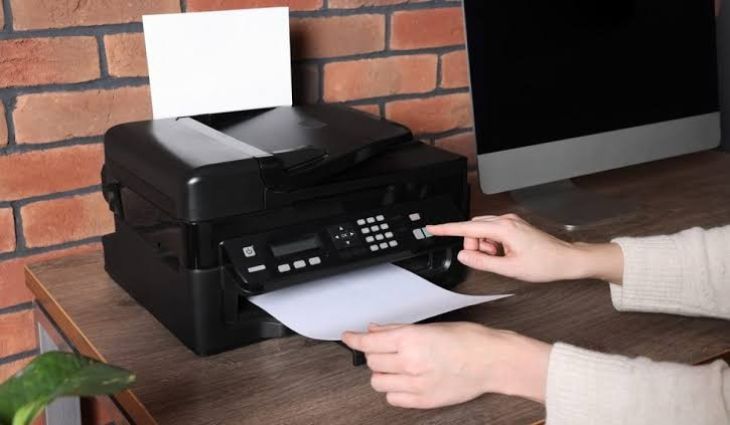
Epson Printer Printing Blank Pages – Causes and Solutions
Epson printers are trusted by home users, students, and businesses for their high-quality printing and dependable performance. Whether you are printing important documents, school assignments, or colorful photos, you expect every page to come out clear and readable. However, one of the most frustrating problems users encounter is when the printer starts producing completely blank pages.
Why Is My Epson Printer Printing Blank Pages?
Several factors can prevent ink from appearing on the printed page.
Low or Empty Ink Cartridges
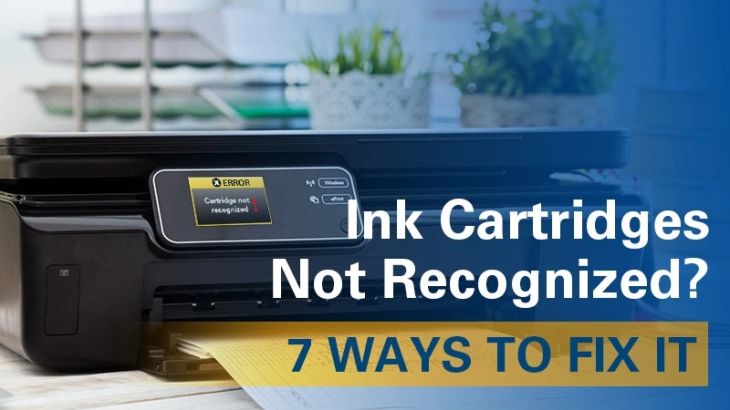
One of the most common reasons is that one or more ink cartridges are running low or have become empty. Without sufficient ink, the printer cannot produce clear text or images.
Clogged Print Head
If the printer has not been used for an extended period, ink may dry inside the print head nozzles. This prevents ink from reaching the paper, resulting in blank pages.
Incorrectly Installed Ink Cartridges
Ink cartridges that are not installed correctly may fail to deliver ink to the print head.
Protective Tape Left on New Cartridges
New ink cartridges usually include protective seals or tape. If these are not removed before installation, ink cannot flow properly.
Outdated or Corrupted Printer Driver
A damaged or outdated printer driver can interrupt communication between your computer and the printer, causing printing errors.
Incorrect Print Settings
Improper print settings may cause documents to appear blank or incomplete.
Software Communication Problems
Temporary communication issues between the computer and the printer may prevent print jobs from processing correctly.
Signs That Help Identify the Problem
Besides blank pages, you may notice other symptoms, including:
-
Missing text or images.
-
Faded printing.
-
Uneven print quality.
-
Printer completes the printing process without visible output.
-
Ink levels appear unusually low.
-
Print jobs finish quickly without proper printing.
-
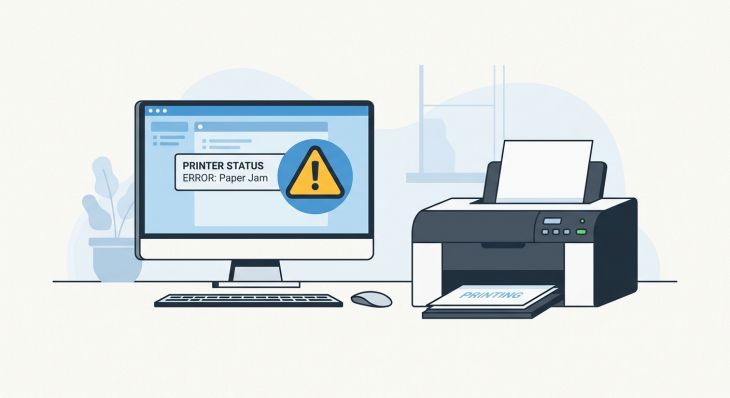
Error messages displayed on the printer or computer.
Recognizing these signs can help narrow down the cause of the issue.
How to Fix an Epson Printer Printing Blank Pages
Check Ink Levels
Begin by checking the ink levels through the printer display or printer software. Replace any cartridges that are empty or nearly empty.
Verify Ink Cartridge Installation
Open the printer and confirm that every ink cartridge is installed correctly and securely.
Remove Protective Seals
If you recently installed new cartridges, make sure all protective tape and packaging materials have been removed.
Clean the Print Head
Run the printer's built-in print head cleaning utility to remove dried ink from the nozzles. You may need to perform the cleaning process more than once if the clog is severe.
Perform a Nozzle Check
After cleaning the print head, print a nozzle check pattern. This helps determine whether ink is flowing correctly through all nozzles.
Restart the Printer
Turn off the printer, wait briefly, and then turn it back on. Restarting often clears temporary software issues.
Restart Your Computer
Restart your computer to refresh system processes and restore communication with the printer.
Check Printer Settings
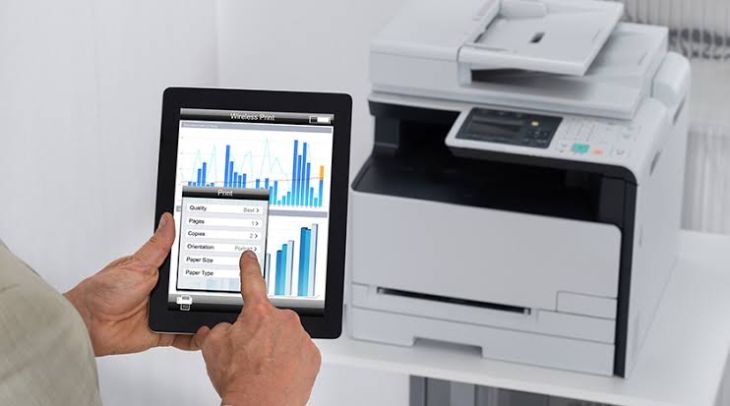
Verify that the correct paper type, print quality, and printer settings have been selected before printing.
Update the Printer Driver
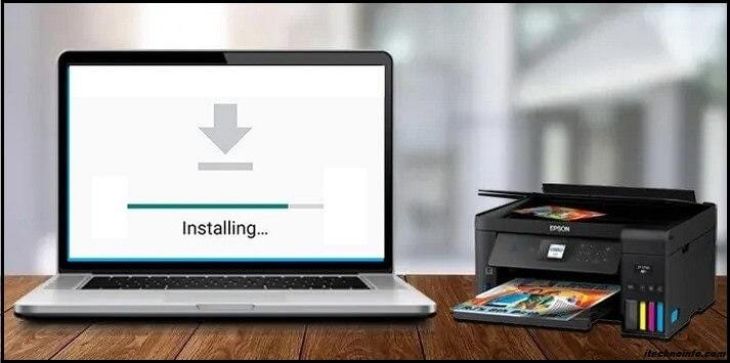
Install the latest Epson printer driver compatible with your operating system. Updated drivers often resolve communication problems.
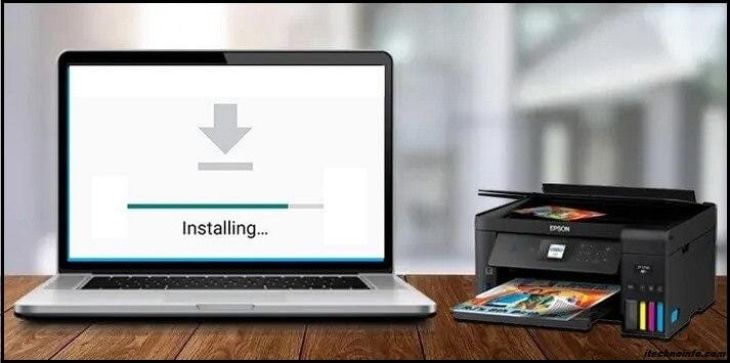
Reinstall the Printer
If the issue continues, remove the printer from your computer and install it again to refresh the printer configuration.
Print a Test Page
After completing the troubleshooting steps, print a test page to confirm that the problem has been resolved.
Tips to Prevent Blank Pages
Regular maintenance can reduce the chances of facing this issue in the future.
-
Print a document regularly to prevent ink from drying.
-
Keep ink cartridges properly installed.
-
Replace cartridges before they become completely empty.
-
Use genuine Epson ink cartridges whenever possible.
-
Perform routine print head cleaning.
-
Keep the printer driver updated.
-
Install firmware updates when available.
-
Store the printer in a clean and dry environment.
-
Protect the printer from excessive dust.
-
Turn the printer off properly after use.
Common Mistakes to Avoid
Avoid these common mistakes when troubleshooting blank pages.
-
Ignoring low ink warnings.
-
Installing cartridges incorrectly.
-
Forgetting to remove protective seals from new cartridges.
-
Performing repeated print head cleaning unnecessarily.
-
Using incompatible printer drivers.
-
Disconnecting the printer while printing.
-
Skipping routine printer maintenance.
FAQs
Why is my Epson printer printing blank pages even though it has ink?
This may happen because of clogged print heads, incorrectly installed cartridges, outdated printer drivers, or incorrect printer settings.
How do I know if my print head is clogged?
Common signs include blank pages, faded prints, missing colors, and incomplete text. Running a nozzle check can help identify clogged nozzles.
Can updating the printer driver solve the problem?
Yes. Installing the latest printer driver can improve communication between your computer and the printer and resolve many printing issues.
How often should I clean the print head?
Clean the print head only when print quality begins to decline or when the printer produces blank or faded pages.
How can I prevent my Epson printer from printing blank pages again?
Print regularly, monitor ink levels, use genuine ink cartridges, keep the printer driver updated, perform routine maintenance, and store the printer in a clean environment.
Conclusion
If your Epson printer is printing blank pages, the problem is usually related to ink supply, clogged print heads, cartridge installation, outdated drivers, or incorrect settings rather than hardware failure. Fortunately, most of these issues can be resolved by checking the ink cartridges, cleaning the print head, updating the printer driver, and reviewing the printer settings.

.jpg)
.jpg)



.jpg)
.jpg)
.jpg)
.jpg)
.jpg)
.jpg)
.png)
.png)

.jpg)
.jpg)
.jpg)
.jpg)
.jpg)
.jpg)
.jpg)

.jpg)
.jpg)